

Prerequisites
- Backend running on
http://localhost:3001 apps/mobile/.envavailable
Steps
1. Copy the Example Environment File
2. Install Dependencies
pnpm install during backend setup, you can skip this step.
3. Set App Identity
Before you prebuild, update the app identity inapps/mobile/app.config.ts:
name(this is the display name users see after install)slug(the internal Expo identifier, usually kebab-case)ios.bundleIdentifierandandroid.package(your app IDs)
name:Finance Appslug:finance-appios.bundleIdentifier:com.company.financeappandroid.package:com.company.financeapp
4. Prebuild
Before prebuild, set your bundle ID inapps/mobile/app.config.ts (the file
ships with a placeholder). This should match your Apple/Google identifiers
before you generate native projects.
5. Run the App
- iOS: install Xcode and the iOS Simulator
- Android: install Android Studio and create an emulator
Some integrations (like RevenueCat and push notifications) require a physical
device and a development build. Expo Go will not support them.
Success Check
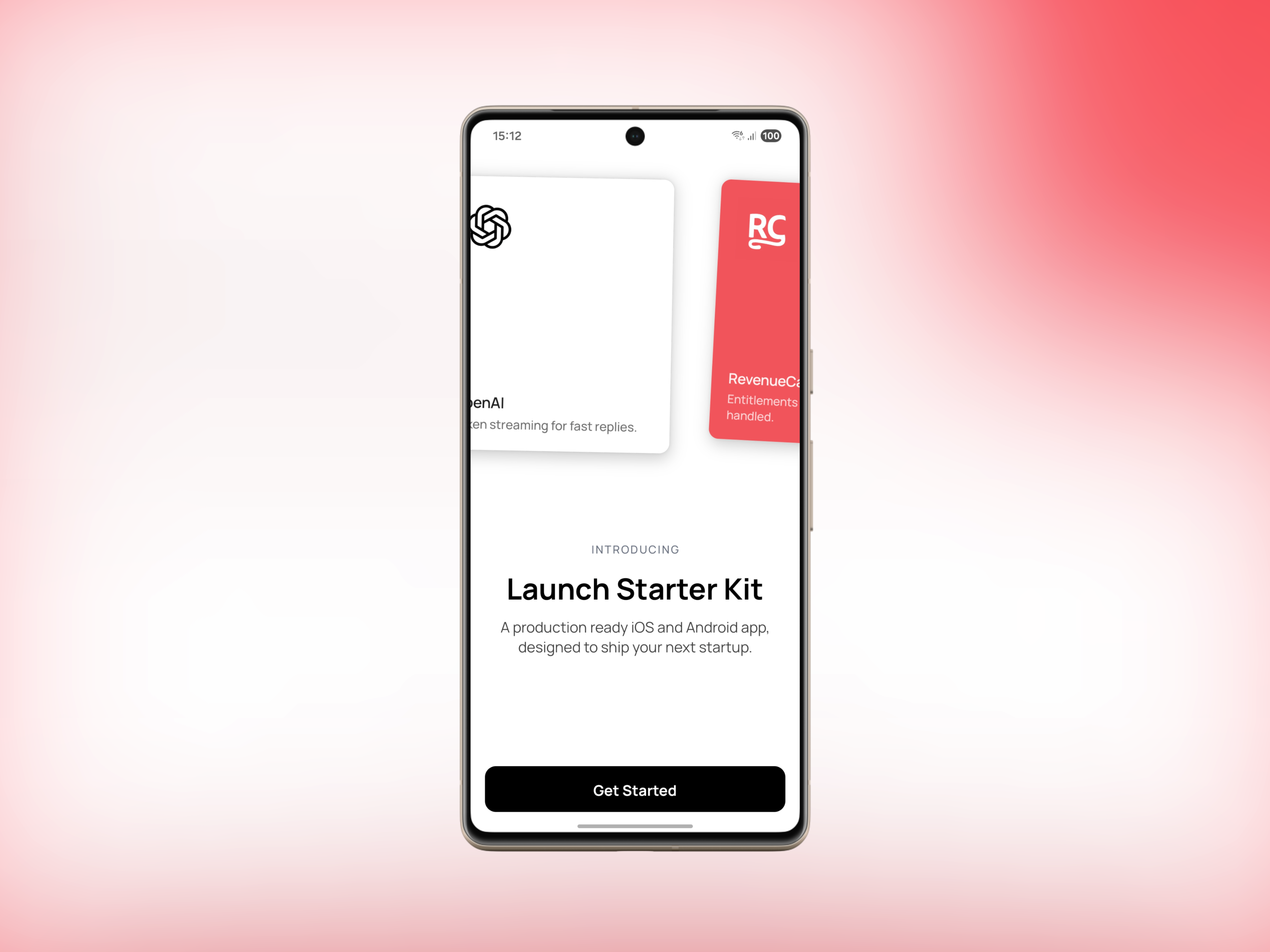
You should see the Launch onboarding flow on first run. During build, a good sign is seeing logs like: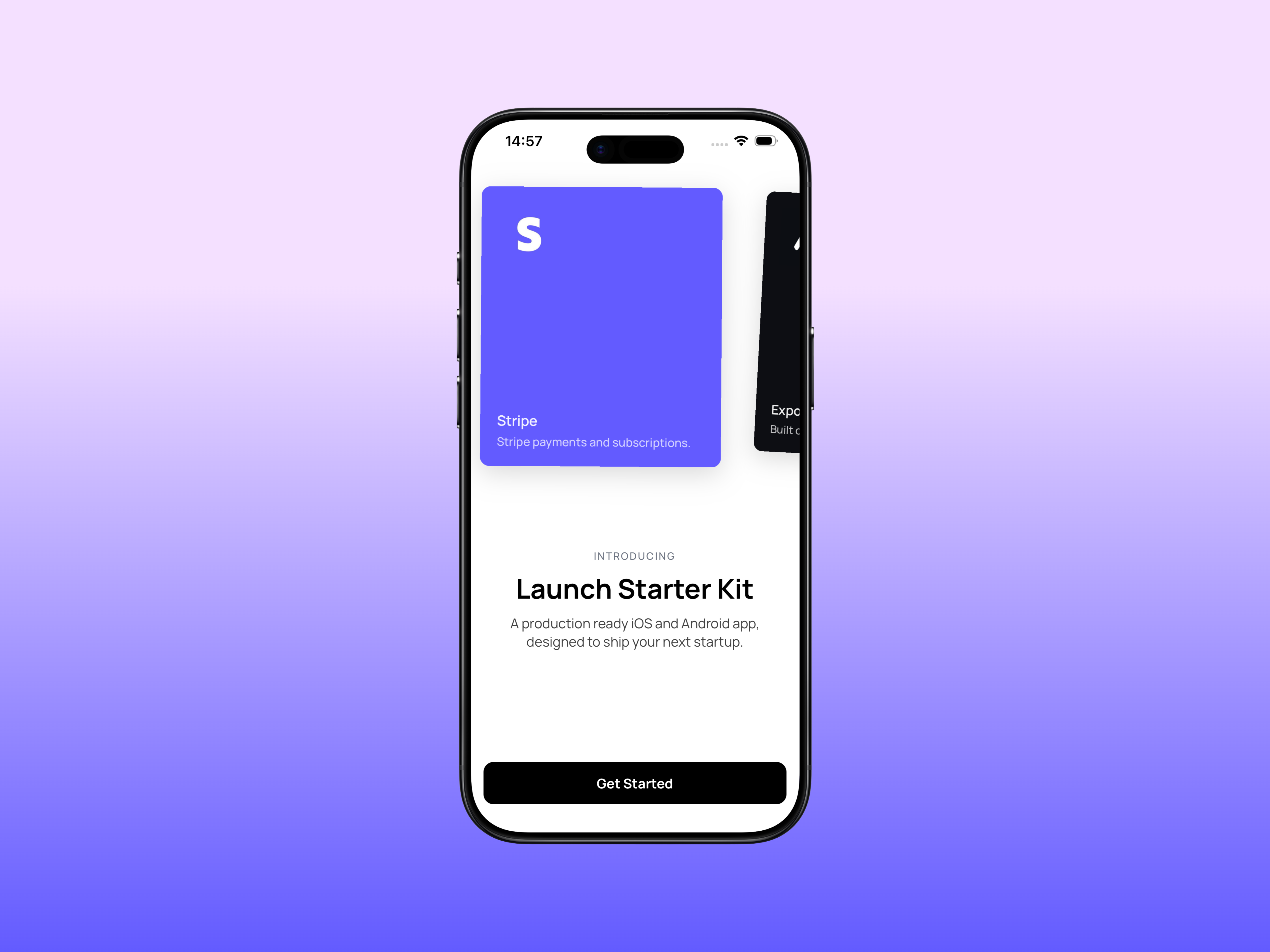
Troubleshooting
- Auth or notifications warnings: safe to ignore during initial setup if
those plugins are commented out in
apps/mobile/app.config.ts. Enable them later when you reach the auth or push guides. - Bundle ID not available: pick a unique
ios.bundleIdentifierandandroid.package(e.g.com.yourcompany.myapp) and rerun prebuild. - Android package name invalid: use only letters/numbers with dots
separating segments, and make sure each segment starts with a letter (e.g.
com.company.financeapp).